
Worried that updating your Debian 13 client will take all weekend?
Keeping your workstation or server patched is literally a 2-command affair:
sudo apt update && sudo apt install linux-image-amd64 && sudo rebootThat’s it! Read on to learn how to check your exact kernel version and verify your system against official security tracker records in under two minutes.
Lazy sysadmin tip: Want your machine to fetch security patches automatically while you sleep? Check out the official guide on setting up Debian UnattendedUpgrades.
It is a quiet Sunday morning. Your Night-Tower homelab is idling gracefully, CPU temperatures are at a cool 32°C, and you are admiring a pristine 214-day uptime counter on your primary Debian host. You take a triumphant sip of warm coffee, open your browser, and glance at the security security tracker.
Then it hits you like a rogue DMA packet: a flurry of CVE security fixes just dropped for Debian 13 (Trixie) in kernel package linux-image-6.12.100+deb13-amd64.
[ ALERT ] CVE-2026-XXXX: Local Privilege Escalation via obscure subsystem
[ ALERT ] CVE-2026-YYYY: Out-of-bounds memory write when handling malformed packets
[ STATUS ] Fixed in linux version 6.12.100+deb13-1
Suddenly, your beloved uptime counter feels less like a badge of honor and more like an open invitation to cosmic chaos. But don’t panic! Upgrading your kernel and double-checking your security status against Debian’s official security tracker is quick, painless, and completely survival-approved.
Here is your ultra-simple, funny survival guide to staying secure on Debian 13 Trixie.
Step 1: Are You Vulnerable? (Checking Your Current Kernel)#
Before you start hyperventilating into a paper bag, let’s see what version of the Linux kernel your machine is actually running right now.
Open your terminal and run the sacred command:
uname -rIf your output looks like this:
6.12.90-amd64or anything lower than 6.12.100+deb13-amd64, you are running an older kernel build that hasn’t received the latest security patches yet.
dpkg -l | grep linux-image
Step 2: The Upgrade Ritual (APT To The Rescue)#
Now that we’ve established that your kernel belongs in an ancient history museum, it’s time to bring linux-image-6.12.100+deb13-amd64 onto your system.
Updating on Debian is blissfully simple. Run these commands in sequence:
# 1. Refresh package repositories
sudo apt update

# 2. Check if the updated kernel is waiting in the wings
apt list --upgradable | grep linux-image

# 3. Upgrade your kernel package directly
sudo apt install linux-image-amd64
Alternatively, if you prefer targeting the exact package explicitly:
sudo apt install linux-image-6.12.100+deb13-amd64apt will fetch the fresh package, pull in updated dependencies, and automatically generate a brand new initramfs image for your GRUB bootloader.
Step 3: The Moment of Truth (Rebooting & Verifying)#
Yes, you have to do it. Take a deep breath, say goodbye to your uptime counter, and issue:
sudo rebootOnce your machine boots back up, open a terminal and verify your active kernel:
uname -rIf the console prints:
6.12.100+deb13-amd64Victory! Congratulations! Your system is now booted into the patched, battle-hardened Linux kernel!
- Package updated via
apt - Reboot performed
-
uname -rreturns6.12.100+deb13-amd64 - Coffee refilled
Angering the “No Reboot” Uptime Gods#
For decades, sysadmins have treated server uptime like a holy relic. “Look at my 800-day uptime!” they boast proudly on Reddit while silently running unpatched memory leaks from 2022.
Let’s get one thing straight: a freshly patched server with 1 hour of uptime is infinitely superior to a vulnerable machine with 3 years of uptime. High uptime is pure vanity; security patches are actual defense.
When you issue sudo reboot, you might hear a faint, thunderous roar in the distance. That is simply the ancient No Reboot Uptime Gods weeping as their sacred counters reset to zero. Ignore their cries—your kernel is now impervious to the latest exploit scripts!
Step 4: Verification Detective Work on the Debian Security Tracker#
Want absolute proof that your new kernel shields you against those scary CVE advisories? You can cross-reference your version directly against official Debian security records.
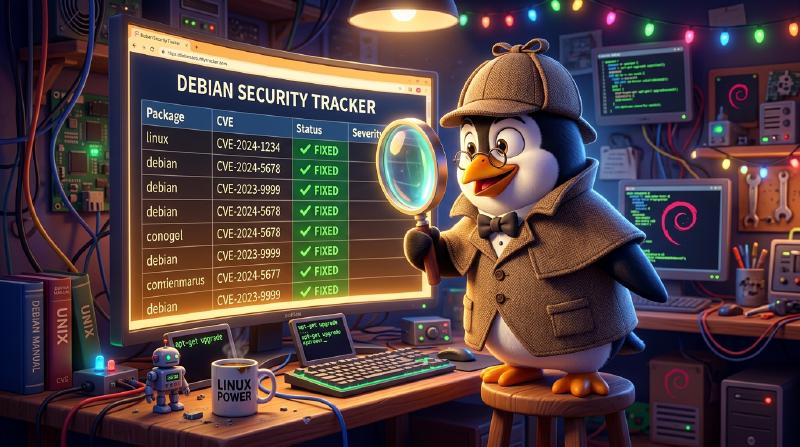
Head over to the official Debian Security Tracker for Linux:
Open Debian Security TrackerHere is how to decode what you see like a security veteran:
- Search for Source Package
linux: The page lists every tracked CVE associated with the Linux kernel across all Debian suites (bookworm, trixie, sid). - Locate the Trixie Column: Find the testing (trixie) or trixie (security) column.
- Check the Version Numbers:
- If a CVE states “fixed in linux version 6.12.100+deb13-1” (or similar build tag), and you are running
6.12.100+deb13-amd64, you are protected! [unfixed]: The security team is aware and actively crafting a fix for an upcoming release.[no-dsa]: Minor security issue; won’t trigger an emergency advisory, but will be merged into the next routine point update.
- If a CVE states “fixed in linux version 6.12.100+deb13-1” (or similar build tag), and you are running
+----------------+-----------------------+-----------------------------+
| CVE ID         | Description           | Trixie (Debian 13) Status   |
+----------------+-----------------------+-----------------------------+
| CVE-2026-12345 | Memory leak in net    | fixed (6.12.100+deb13-1)    |
| CVE-2026-67890 | Privilege Escalation  | fixed (6.12.100+deb13-1)    |
+----------------+-----------------------+-----------------------------+
Summary & Wrapping Up#
Upgrading your kernel might cost you your 300-day uptime bragging rights, but running linux-image-6.12.100+deb13-amd64 guarantees that hackers can’t crash your homelab with craftily formatted packets.
Whenever you hear news about kernel vulnerabilities:
- Run
uname -r. - Upgrade with
sudo apt update && sudo apt install linux-image-amd64. - Reboot into safety.
- Verify on security-tracker.debian.org.
What’s Your Uptime Record?#
Did this patch shatter an impressive uptime streak on your server, or do you reboot every time Debian releases a minor package update? Drop a comment below and share your longest uptime casualty!