
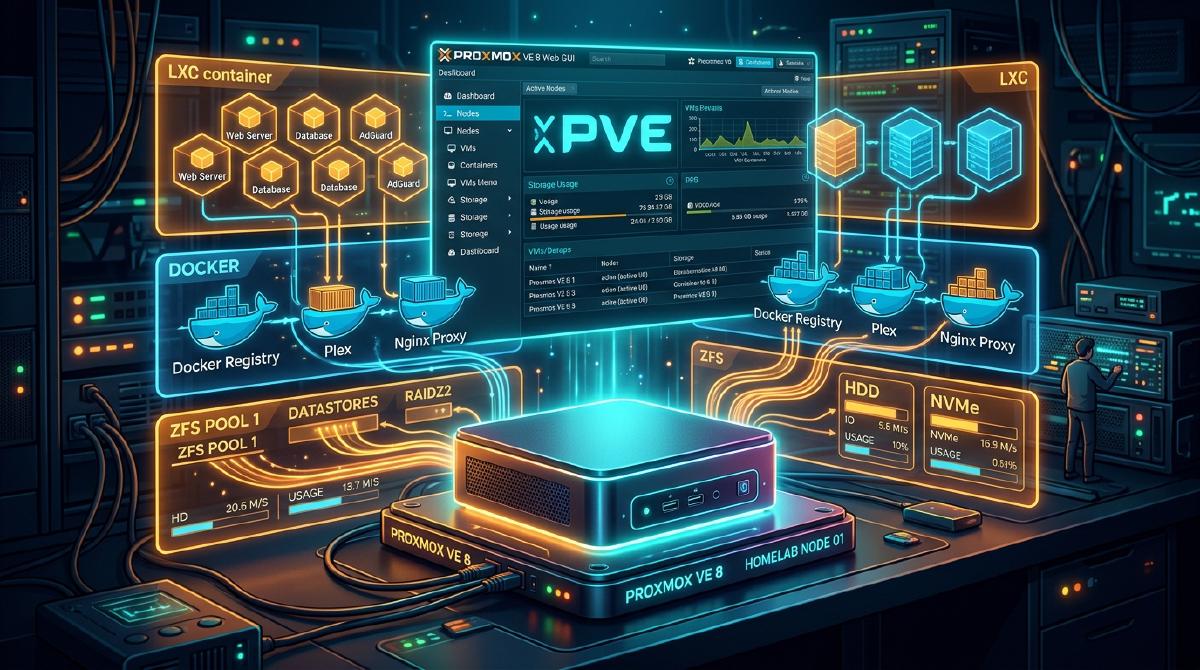
Building a modern homelab requires a hypervisor that balances performance, low memory overhead, and enterprise features. Proxmox Virtual Environment (VE) 8 is the premier open-source hypervisor for self-hosters and DevOps engineers.
In this guide, we cover setting up Proxmox VE 8, creating high-performance ZFS storage pools, and automating LXC container and Docker deployments.
💻 Recommended Mini PC Homelab Hardware#
Proxmox VE 8 runs efficiently on modern low-power mini PCs. Here is our recommended hardware configuration:
- Mini PC Host: Intel N100 / Core i5 Mini PC (Beelink or Minisforum).
- RAM: 32GB DDR4/DDR5 Non-ECC RAM.
- Storage: 1TB NVMe PCIe 4.0 SSD for ZFS storage pools.
For scalable cloud backups or hybrid nodes, consider hosting offsite servers on DigitalOcean Cloud Servers affiliate .
⚡ Step 1: Post-Install Optimization Scripts#
Once Proxmox VE 8 is installed, log into the web GUI (https://your-node-ip:8006) and open the shell console to disable non-subscription repo warnings and apply community updates:
# Disable pve-enterprise repo and enable pve-no-subscription
rm -f /etc/apt/sources.list.d/pve-enterprise.list
echo "deb http://download.proxmox.com/debian/pve bookworm pve-no-subscription" > /etc/apt/sources.list.d/pve-no-subscription.list

# Update system packages
apt update && apt dist-upgrade -y
📦 Step 2: Automating LXC Container Creation#
LXC (Linux Containers) share the host Linux kernel, offering near-zero performance overhead compared to heavy virtual machines.
Use Proxmox helper scripts to instantly deploy an unprivileged Debian 12 LXC container for Docker workloads:
bash -c "$(wget -qLO - https://github.com/community-scripts/ProxmoxVE/raw/main/ct/docker.sh)"This automated script configures:
- An unprivileged LXC container with Docker and Docker Compose pre-installed.
- Fuse / OverlayFS storage drivers for high-speed container operations.
- Systemd service autostart enabled on host boot.
🛡️ Step 3: Configuring Automated ZFS Backups#
Data redundancy is vital. Configure Proxmox VE’s built-in VZDump tool to schedule weekly automated backups to an external storage drive or NFS mount:
1. Target Storage Mount
2. Backup Schedule
💬 Share Your Homelab Setup#
What hypervisor are you running in your home lab? Have questions about LXC passthrough or Proxmox ZFS tuning? Drop a comment below!
Read All Homelab Guides